Efficient Paid Time Off (PTO) planning is crucial for team productivity and morale, ensuring everyone gets their deserved breaks without causing workflow disruptions. Google Workspace offers powerful collaboration tools, including shared calendars, which make managing team vacations seamless and transparent. This guide explores strategies to streamline PTO planning using a shared team vacation calendar in Google Workspace, helping managers and employees coordinate absences effectively.
Benefits of Using a Shared PTO Calendar
- Improved visibility: Everyone on the team can see PTO schedules at a glance, reducing conflicts and double bookings.
- Centralized management: PTO requests and approvals are tracked in one location, simplifying administration.
- Enhanced communication: Shared visibility encourages proactive planning and workload redistribution.
- Accessible anytime, anywhere: Synchronized across devices, ensuring up-to-date information whether in office or remote.
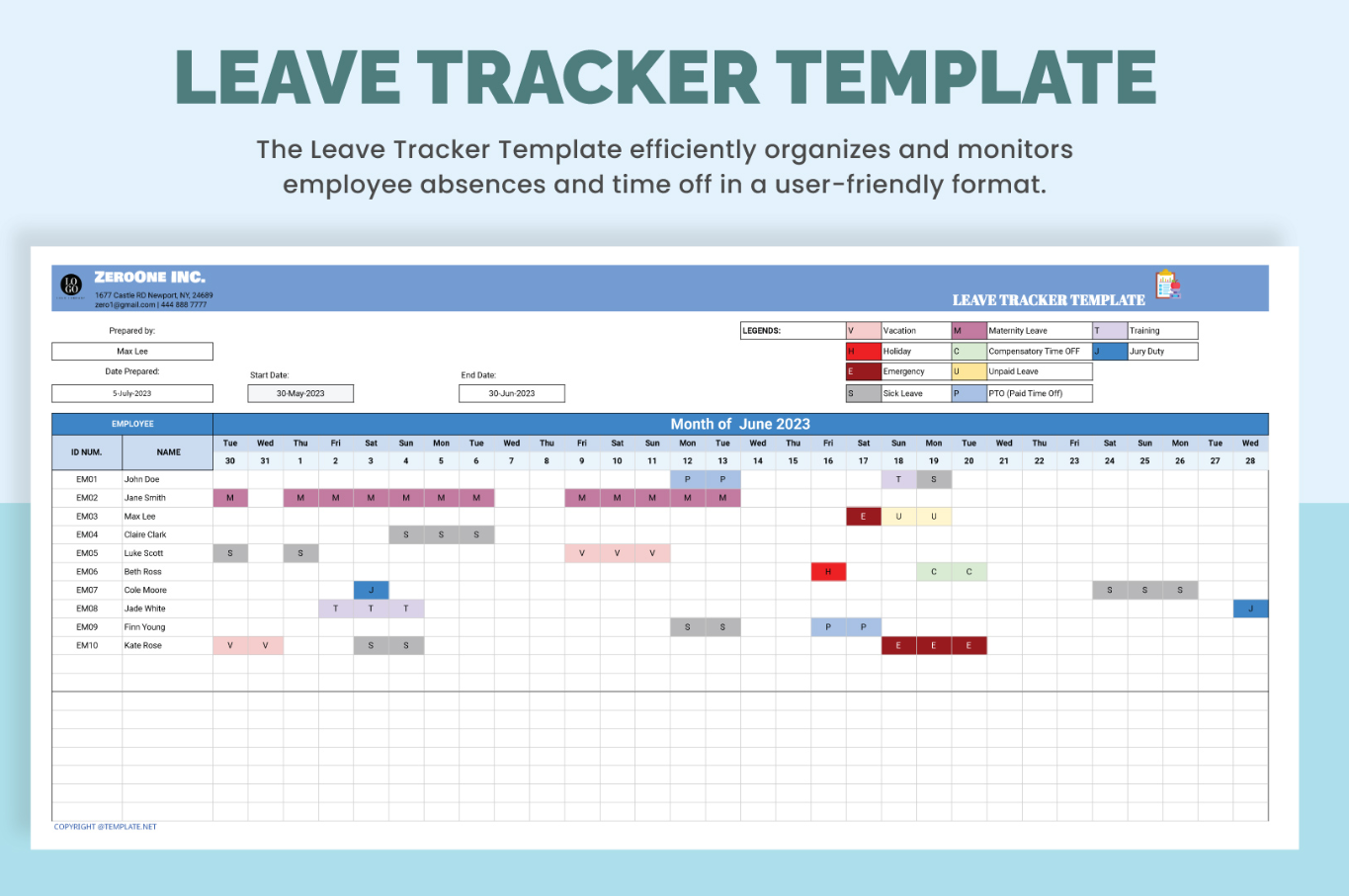
Setting Up a Shared Team Vacation Calendar in Google Workspace
Step 1: Create a Team Calendar
- Open Google Calendar from your Google Workspace account.
- In the left sidebar, click + Add other calendars.
- Select Create new calendar and name it something clear like “Team PTO Calendar”.
- Add a description (optional) and click Create calendar.
Step 2: Share the Calendar with Team Members
- Go to Settings and Sharing for your newly created calendar.
- Under Share with specific people, add your team members’ email addresses.
- Assign them appropriate permissions such as Make changes to events so they can add and edit their PTO entries.
- Click Send to notify them.
See also Project Management Calendar for Software Development Teams Using Agile Sprint Methodologies
Step 3: Define PTO Event Practices
- Create standard event titles like “PTO – [Name]” for clarity.
- Use event descriptions to add details such as PTO type (vacation, sick leave), backup contacts, or project notes.
- Color-code events to differentiate full-day absences, half-days, or special cases.
Step 4: Establish Request and Approval Protocols
- Encourage team members to enter requested PTO dates into the shared calendar before formally submitting requests.
- Managers review the calendar for conflicts and communicate approvals.
- Once approved, update event status or send calendar invites marking official PTO.
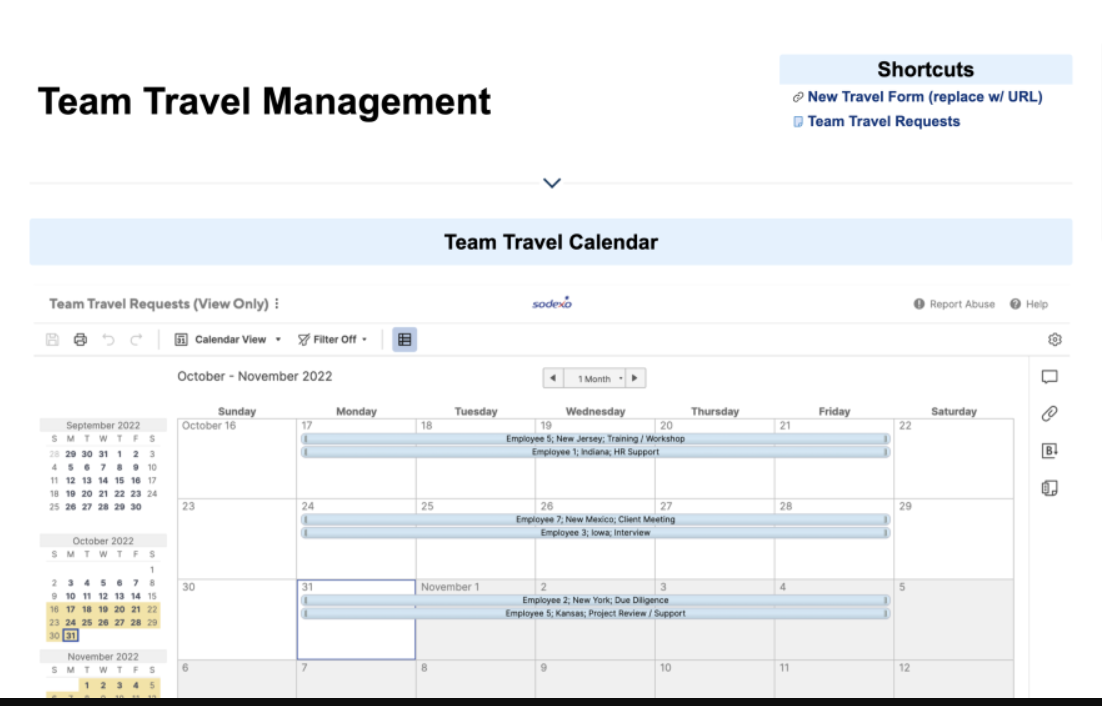
Best Practices for Managing PTO with Google Workspace Calendar
- Regularly update availability: Encourage prompt updating of PTO entries to reflect changes or cancellations.
- Set reminders: Use Google Calendar’s notification features to alert managers and teammates about upcoming absences.
- Integrate with Google Forms or Sheets: Streamline PTO requests and approvals by capturing submissions and approvals linked with calendar events.
- Review monthly: Schedule a monthly calendar review with the team to anticipate workload gaps and adjust assignments.
- Promote transparency: Share guidelines and expectations around PTO planning and coverage.
Integrations and Advanced Tips
For larger teams or complex PTO policies, consider integrating calendar management with third-party tools like:
- Google Forms: Automate PTO request submissions feeding into calendars or sheets.
- Zapier: Connect Google Calendar with HR software or Slack for automated notifications.
- HRIS platforms: Some HR systems natively sync PTO data with Google Calendar for unified management
